Tuesday, October 1, 2013

Windows 8.1 Shortcuts

Windows 8.1 will be public available on October 17th 2013.
Windows 8 introduced a lot of new shortcuts with support for Windows 8 Apps. With Windows 8.1 support of new Windows 8.1 App features like multi monitor support, new shortcuts emerged and some existing shortcuts have been changed.
Command Bars/Charms  
Windows + C This shortcut gives you view the Settings, Devices, Start, Share & Search.
swipe: from right
hot-corner: top right
Windows + I Window Restart, Shutdown, Sleep,
Taskbar Notification Icons like Network, Sound Control, Brightness, Notifications, Keyboard.
Windows + X Menu for frequent Administrator Tasks
   
Windows + K Display Devices to share with.
Windows + P Project/Extend to an additional screen
Windows + H Display Share options.
   
Search Location
Windows + S Everywhere
Windows + Q Everywhere
Windows + W Settings
Windows + F Files
   
Apps  
Windows + Z Open the current application's application bar.
Windows + Left/Right Snap/Split App to the left/right.
Windows + Up If active App window is snapped/spitted –> full size.
Windows + Down Close and end App.
Windows + : Change to App window snap/split mode.
Windows + ; Preview “Desktop background”
Windows + Shift + Left/Right Move app to monitor.
(Windows 8: Windows + PgUp/PgDn)
   
Start/Tiles  
Strg + Tab Switch between tiles an apps
   
Desktop  
Windows + T Displays the Window Group Thumbnails on your taskbar. This is equivalent of hovering the mouse over the Taskbar Icons. Press Space to activate a Thumbnail.
Windows + B Go to the notification area
Windows + 1 … 0 Opens 1…10th application on taskbar with  Normal Privileges. You can use the following values for applications on Taskbar.
Windows + Ctrl + Shift + 0 Opens 1…10th application on taskbar with  Elevated Privileges. You can use the following values for applications on Taskbar.
   
Miscellaneous  
Windows Toggle between Modern Desktop & Legacy Desktop.
Windows + D Takes you to Classic Windows Desktop. If you press this key from the Modern Desktop, this takes you to the currently active application on the Classic Desktop.
Windows + M From the Modern Desktop, this takes you to the currently active application on the Classic Desktop and minimizes all other applications on the Classic Desktop.

Missing Shortcuts but workarounds:

Shortcut for “Networks charm”

image

Windows + B gets you to the notification area. You could either arrow key over to the icon, or set it as the first icon (from the left). Then, all you have to do is: Win + B, Enter.
Source: http://superuser.com/a/541163


more shortcuts:

Friday, August 2, 2013

GIT-TF Tips and Tricks

description (codeplex)

Git-TF is a set of cross-platform, command line tools that facilitate sharing of changes between TFS and Git.
These tools make it easy to clone sources from TFS, fetch updates from TFS, and update TFS with changes committed locally in Git.

Git-TF is a handy command line extension to TFS if you want to use distributed source control for advanced scenarios.
In general Git-TF is working fine. However there are some scenarios where you’ll get some headache fixing git-tf to tfs-source-control conversion history.

  • TFS don’t like it if you have multiple heads
  • some issues with complex history paths which result in high cpu usage of java.exe
  • avoid complex branch trees with merges, really!


How to do it?

avoid merges

instead rebase!


Alias

the following git aliases come in handy if your working with git-tf

Git Tools for Windows

Visual Studio 2013Alternate Text

description

Visual Studio 2013 has native support for git repositores for file versioning. However not all advanced features are supported like line by line staging, rebase, …
However VS2013 is working fine together with other git tools like msysgit, gitextensions.


usage scenarios

  • basic source control handling inside visual studio

TIPS

Git-TFimage

description (codeplex)

Git-TF is a set of cross-platform, command line tools that facilitate sharing of changes between TFS and Git.
These tools make it easy to clone sources from TFS, fetch updates from TFS, and update TFS with changes committed locally in Git.

usage scenarios

  • clones tfs 2008/2010/2012 source control repositories into local git repositories.
  • local offline usage
  • local commit
  • local branches

tips

  • use a separate branch for your development
  • rebase instead of merge to avoid tfs checkin conflicts

Visual Studio Tools for Git

Description (VS-Gallery)

The Visual Studio Tools for Git is an extension for Team Explorer that provides source control integration for Git. This extension enables integration with any local Git repository, and it provides tools to work with third party hosted Git repositories. The extension also enables the use of Team Foundation Service hosted Git projects.

usage scenarios

  • Git Source Control integration with VS 2012
  • basic source control handling inside visual studio

tips

Git Extensionsimage

description (code.google.com)

Git Extensions is the only graphical user interface for Git that allows you control Git without using the commandline. It comes with a manual and video tutorials to get you started quickly.

usage scenarios

  • using Git without using the command-line
  • basic and advanced source control operations

tips

  • configure Visual Studio 2012/2013 as merge tool
  • msysgit will be installed with Git Extensions if not already installed

msysgitimage

description

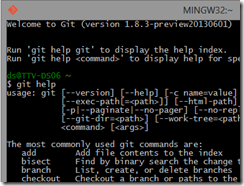
Git bash commandline client for windows (simple installer), not all advanced features are supported like python scripting integration.

usage scenarios

  • basic and advanced source control operations
  • if like the command line – use it

tips

  • works fine hosted inside conemu

posh-gitimage

description (github)

A set of PowerShell scripts which provide Git/PowerShell integration.

usage scenarios

  • basic and advanced source control operations
  • if like the command line – use it
  • if you like the power of PowerShell – use it

tips

  • works fine hosted inside conemu
  • command ‘ii .’ will open explorer in current folder path
  • combine ‘VS Developer Command Promt’ with powershell and posh-git –> eg: run msbuild and vs-tools inside powershell

SourceTreeimage

description (atlassian)

A free Mercurial and Git client for Windows or Mac
SourceTree is a powerful Git and Mercurial desktop client for developers on Mac or Windows

usage scenarios

  • using Git without using the command-line
  • basic and advanced source control operations

tips

SmartGitimage

description (syntevo)

SmartGit/Hg is a client for Git and Mercurial. It runs on Mac OS X, Windows and Linux.

usage scenarios

  • cross plattform UI client for git
  • using Git without using the command-line
  • basic and advanced source control operations

tips

Github for Windowsimage

description (github)

  • Develop on Windows, share on GitHub.
    • Clone Repositories
    • Browse History
    • Commit Changes
    • Branch Code
    • Share on GitHub.com
  • The easiest way to use Git on Windows.

usage scenarios

  • using Git without using the command-line
  • basic and advanced source control operations
  • Simple UI in ‘Modern UI’ Style
  • Git Shell command line (powershell)

tips

  • includes posh-git inside of Git Shell

Wednesday, March 20, 2013

Unzipping/extracting MSI files

Not that often but sometimes I need to extract some dlls from msi packages. msiexec provides all the functions which are needed as described here.

Usually I’m working using the command line

msiexec /a foo.msi /qb TARGETDIR="C:\TEMP\Foo"

but sometimes it’s helpful to have a context menu entry like this.


To add the Extract MSI entry to the context menu you’ve to add it to the registry, details here or use gist below. The second gist shows how a .bat file which can extract all msi’s in a folder can look like.

Friday, March 8, 2013

VS2012.2 – tips and tricks–team explorer shortcuts and patterns

With the upcoming Visual Studio 2012 Update 2 and Visual Studio Tools for Git support for Git source control is coming to visual studio.

For this the Visual Studio team has adopted some parts of VS2012 new Team Explorer UI to make it easier to connect to different repositories in a quicker way.

Like in my previous shortcuts and patterns post I’ve tried to adapt the existing pattern to support the new Visual Studio Tools for Git extension.

Team commands shortcuts
View.TfsTeamExplorer SHIFT + ALT + V, T
View.TfsSourceControlExplorer SHIFT + ALT + V, S

Pattern for “classic” Team Explorer commands: SHIFT + ALT + T

Team Explorer commands shortcuts
Team.TeamExplorerSearch STRG + รค
TeamFoundationContextMenus.Commands.GoToHome SHIFT + ALT + T, H
TeamFoundationContextMenus.Commands.GoToBuilds SHIFT + ALT + T, B
TeamFoundationContextMenus.Commands.GoToWorkItems SHIFT + ALT + T, W
TeamFoundationContextMenus.Commands.GoToPendingChanges SHIFT + ALT + T, P
TeamFoundationContextMenus.Commands.GoToMyWork SHIFT + ALT + T, M
TeamFoundationContextMenus.Commands.GoToWebAccess SHIFT + ALT + T, A

Pattern for Editor/SourceControl: SHIFT + ALT + S

TFS Editor/SourceControl commands shortcuts
File.TfsHistory SHIFT + ALT + S, H
File.TfsAnnotate SHIFT + ALT + S, A
File.TfsCompare SHIFT + ALT + S, C
File.TfsUndoCheckout SHIFT + ALT + S, U

Pattern for Git Team Explorer commands: SHIFT + ALT + T

Team Explorer commands shortcuts scope
Team.Git.GoToGitBranches SHIFT + ALT + G, B global
Team.Git.GoToGitChanges SHIFT + ALT + G, G global
Team.Git.GoToGitCommits SHIFT + ALT + G, C global
Team.Git.OpenCommandPrompt SHIFT + ALT + O, P Team Explorer
Team.Git.OpenFileExplorer SHIFT + ALT + O, E Team Explorer
Team.Git.Push SHIFT + ALT + G, P Team Explorer
Team.Git.ViewHistory SHIFT + ALT + G, H global

Tuesday, November 6, 2012

IntelliCommand Visual Studio Extension

Using Resharper and sometimes not finding the correct shortcut for your command?

IntelliCommand, is a new extension for VS2010 and VS2012 which will show you an overlay about available commands inside Visual Studio. It’s not only showing you all available keyboard shortcuts, it’s also filtering which are available in the current context (in the screenshot you’ll see all available text editor commands)

IntelliCommand can also help you to identify which keyboard shortcuts in which context are available.

Source: http://visualstudiogallery.msdn.microsoft.com/83f59659-abc1-4bfa-9779-42f687af0481

Wednesday, October 31, 2012

TFS2012–multiple users assignment – tfs user group

I think the most well known classical workaround like in TFS2008 and TFS 2010 is to assign a work item to a group of people.

How to do it?

  • You have to create for each combination of persons you want to be able to assign a user group in TFS
  • You have to adapt each work item which should support this by adding these groups to the assigned to field as allowed values.

Assume that you are working in a team with 5 persons and want to be able to assign your work items to the following combinations.

  • Group: Team
  • Group: PersonAPersonB (Person A, Person B)
  • Group: PersonAPersonC (Person A, Person C)
  • and so on ….

You have to create for each combination a new group in TFS and assign the persons to it.

You have to adapt your work items and change the definition of your Assigned To field to something like this:

<FIELD name="Assigned To" refname="System.AssignedTo" type="String" syncnamechanges="true" reportable="dimension">
<
ALLOWEDVALUES expanditems="true">
<
LISTITEM value="[project]\PersonAPersonB" />
<
LISTITEM value="[project]\Team" />
<
LISTITEM value="[project]\PersonAPersonC" />
</
ALLOWEDVALUES>
</
FIELD>


And in webaccess it will look like this (test is the only user in this screenshot and is assigned to the team group):


Task work item with groups in assigned to field


Limitations?


One of the most interesting question is how it will integrate with the new agile features in TFS2012.


General issues and workarounds:


  • Custom work item queries have to be adapted to also work with groups
  • Hardcoded work item queries are not working with groups like “My Work in Team Explorer“


Taskboard


For the taskboard it doesn’t make a difference if a work item is assigned to a user or a tfs user group.


agile taskboard with group assigment


agile taskboard with person filtering


Capacity planning Calculation is broken!


As we can see in the screenshot below the capacity planning calculation does not work together with the group assignments.


image


image


Conclusion


For special use cases this can be a valid approach with the downside that you cannot use the new capacity planning features. Each work item query which relies on the @me keyword has to be adapted for each team member to include the custom groups. This means that we won’t be able to have a generic query like “Assigned to me” anymore.