Friday, June 10, 2016

SonarQube 5.6, LDAP 2.0 plugin and Active Directory

With the recently released SonarQube 5.6 LTS, also the updated LDAP 2.0 Plugin is required (Plugin Version Matrix). If you have used Active Directory in the past to authenticate against SonarQube you’ll will hit very early a breaking change with the LDAP plugin.

If you were using those advanced Active Directory features, you must uninstall the LDAP plugin and install the new Active Directory one instead (available as a community plugin).

As with this version Active Directory authentication is no longer integrated into LDAP plugin but separated out into a new plugin called Active Directory Plugin. At the time writing this post, the new plugin was not yet released and not listened on the plugin library which means you have to download the release candidate from github yourself and deploy it manually to your server.

There is also a small change required when using the new Active Directory Plugin in your existing LDAP configuration stored in your sonar.properties file.

before SonarQube 5.6

# LDAP configuration sonar.security.realm=LDAP

starting with SonarQube 5.6

# LDAP configuration sonar.security.realm=ACTIVE_DIRECTORY

Monday, November 30, 2015

Getting ready for ASP.Net on Ubuntu 14.04

There are multiple ways how you can get ASP.Net running on Ubuntu. The classical way would be installing .Net Core and ASP.Net 5 by hand inside a virtual machine. This is handy if you also want to develop on Linux. Coming from Windows, using Visual Studio as my daily driver, changing to Visual Studio Code on Ubuntu is a new interesting development experience.

If you just want to have a server for testing and hosting your stuff I recommend using Docker.

Saturday, November 28, 2015

Ubuntu virtual machines on Hyper-V

Have you ever tried to running Ubuntu inside a Hyper-V virtual machine? If not but you are interested check the following links for a quick start:

Friday, November 27, 2015

Not enough free disk space on /boot partition, Ubuntu on Hyper-V Gen2

Yesterday my Ubuntu 14.04 virtual machine declined to install updates because /boot partition was full.

image showing /boot partition on Ubuntu 14.04 running in Hyper-V Gen2 is full

After some time I found an old forum entry(link) discussing the same problem.

Finally the solution was to run the following command to cleanup old dependencies and kernel versions

sudo apt-get autoremove

sudo apt-get clean

Monday, November 16, 2015

Let's make taking pictures in OneNote more productive

Let's make taking Pictures in OneNote more productive

Not all of us can own a Surface Hub and I can think of some scenarios where it won't fit as an electronic whiteboard and use of a classical whiteboard is required. But still lots of us use OneNote as their note tacking app and want to add photos of classical whiteboard notes in a fast, instant and non-interruptive way.

OneNote is also my favorite note tracking app, but:

Why is it that hard to add a "good" photo of your whiteboard notes or drawings to your OneNote notes?

Today, I have to take out of my pocket my mobile phone, have to select a photo taking app like Office Lens, take a picture, maybe crop and rotate it, store it on some cloud drive (in office lens you can select the OneNote section where it should be added) and wait until it is synced to your note taking device. If this is your primary device I can imagine this is fine for you. I'm using my Surface Pro 2 or Lenovo ThinkPad notebook for notes.

We have hard- and software ready to take good pictures but I think the overall process can be streamlined to make it more productive.


OneNote (Desktop)

We can insert pictures and create live screen clippings, even we can record video and audio but I haven't found a way to take a picture …

Office OneNote Desktop, Screenshot, Ribbon, Insert


OneNote Mobile

Inside OneNote Mobile we already have good old "Camera" but …

Office OneNote Mobile, Screenshot, Ribbon, Insert

How would it be if we had the full power of Office Lens inside OneNote (UWP, Windows Desktop, IPhone, Android, Web)?

Let's vote for it Smile

Updated 17.11.2015: fixed uservoice entry and link

Friday, December 6, 2013

Use IIS redirect for TFS

By default the TFS setup creates on your IIS Default Web Site an application named TFS. In most setups I’ve seen so far, the used IIS is only used by TFS so why not use HTTP Redirect for your TFS application?

The typical scenario looks somehow like this:

TFS is installed on a virtual machine, inside Default Web Site, nothing else installed on Default Web Site.
DNS-Name is something similar to https://tfs.<domain>.com
TFS webaccess Url is similar to https://tfs.<domain>.com/tfs
If you browse https://tfs.<domain>.com you’ll get an 403 error, not authenticated.

Would be fine if the default domain would redirect to the TFS application like this:

On your Default Web Site go to Http Redirect: image

In the screenshot below you can see how the redirect should be configured

image

Wednesday, December 4, 2013

MSBuild–Visual Studio project template

Based on the ide of Sayed Ibrahim Hashimi’s blog post about “Hijacking the Visual Studio Build Process” I’ve created a small Visual Studio project template for custom MSBuild based projects which you can find in the Visual Studio gallery.image

Why should I care about it?

  • Build/Rebuild/Clean inside visual studio without switching to the command line
  • Easier to maintain files inside a project than inside “solution files”
  • IntelliSense
  • Source control integration
  • Visual Studio editor experienceimage

The first screenshot is showing you how the project experience will look like. You can see the green + sign which indicates that this project was added to source control but not yet committed/checked-in.

The second screenshot shows you how IntelliSense can look like, I’m using ReSharper so maybe on your machine it can look a little bit different. 

VSGallery: MSBuild Empty Project Template

Tuesday, December 3, 2013

Override the TFS Team Build OutDir – Part 2

I’ve already written about the MSBuild workaround using the property switch:

/p:GenerateProjectSpecificOutputFolder=true

You can read more about this here

But what is better than a workaround?

Windows 8.1 + OneNote – fix shortcut for screen clippings

With Windows 8.1 update, Microsoft added the new shortcut for Win + S to “search everywhere” (with bing, maybe we should call it: bing it).

In the past this screenshot was used by Microsoft Office OneNote to take screen clippings. Sometime it really takes lot’s of time to fix a bug like this …

But there is a workaround –> regedit for Win + A alternative

[HKEY_CURRENT_USER\Software\Microsoft\Office\15.0\OneNote\Options\Other]
"ScreenCLippingShortcutKey"=dword:00000041

Source: http://blogs.office.com/b/microsoft-onenote/archive/2013/06/27/try-windows-8-1-preview-and-bring-back-your-favorite-shortcut-key.aspx

Monday, December 2, 2013

5 minutes to cleanup your context menu from overloaded git commands …

imageHow many git tools have you installed? Is your context menu overloaded like on the screenshot to the right? Git for Windows, Git Extensions, tortoisegit and other tools are creating lots of redundant command menu entries. Most of the time you won’t need multiple ways of doing a fetch or a command or even want to do all the stuff from the commandline. Take time to cleanup unnecessary stuff from your developer machine and because there will be the nice side effect of faster opening context menus.

But how, lets continue here …

Monday, November 25, 2013

Got 15 minutes and want to learn Git?

Are you new to git our recently started working with git command-line?

Try it out inside your browser: http://try.github.io/levels/1/challenges/1

Learn how to master branches here: http://pcottle.github.io/learnGitBranching/

Thursday, November 14, 2013

Visual Studio/TFS 2013 Patches

With the new version of Visual Studio 2013 and Team Foundation 2013 Microsoft has delivered lots of new features. Unfortunately they have also introduced some new bugs with their last minute changes however they have managed to provide some quick fixes for some of them.

Last update: 14.11.2013

08.11.2013 Updated Team Foundation Server 2013 download addressing web and installation path issues
Fixed: Red error box when using Code (version control) in the web UI
Fixed: Unable to install into a custom path
Updated install media
08.11.2013 Visual Studio and Team Explorer 2013 no longer require IE 10 for installation
But check the KB article for known issues when not using IE10
Updated install media
13.11.2013 Patch for issue with Visual Studio 2013 Queue Build dialog Hotfix

What’s installed on the build machine in Visual Studio Online(Team Foundation Service)?

Great question, great answers …

official http://www.visualstudio.com/en-us/get-started/hosted-build-controller-vs#software
in detail http://listofsoftwareontfshostedbuildserver.azurewebsites.net
inside VS2012 Avanade Extensions for VS2012
inside VS2013

Avanade Extensions for VS2013

Friday, October 4, 2013

Override the TFS Team Build OutDir property in .NET 4.5

Fighting against TFS Build default OutDir for binaries like:

  • <drop>/Binaries (TFS 2010)
  • <drop>/bin (TFS 2012, TFS 2013)

Instead you want to have for each project a separate folder like this:

  • <drop>/<projectname>/*.dll

Thanks to .Net 4.5 there is an easy solution to solve this

Pass the following MSBuild-Argument to your BuildProcessTemplate:

/p:GenerateProjectSpecificOutputFolder=true

Source: http://blog.stangroome.com/2012/05/10/override-the-tfs-team-build-outdir-property-net-4-5/

Override the TFS Team Build OutDir property in .NET 4.5

Fighting against TFS Build default OutDir for Binaries like

  • <drop>/Binaries (TFS 2010)
  • <drop>/bin (TFS 2012, TFS 2013)

Instead you want to have for each project a separate folder like this:

  • <drop>/<projectname>/*.dll

Thanks to .Net 4.5 there is an easy solution to solve this

Pass the following MSBuild-Argument to your BuildProcessTemplate:

/p:GenerateProjectSpecificOutputFolder=true

Source: http://blog.stangroome.com/2012/05/10/override-the-tfs-team-build-outdir-property-net-4-5/

Tuesday, October 1, 2013

Windows 8.1 Shortcuts

Windows 8.1 will be public available on October 17th 2013.
Windows 8 introduced a lot of new shortcuts with support for Windows 8 Apps. With Windows 8.1 support of new Windows 8.1 App features like multi monitor support, new shortcuts emerged and some existing shortcuts have been changed.
Command Bars/Charms  
Windows + C This shortcut gives you view the Settings, Devices, Start, Share & Search.
swipe: from right
hot-corner: top right
Windows + I Window Restart, Shutdown, Sleep,
Taskbar Notification Icons like Network, Sound Control, Brightness, Notifications, Keyboard.
Windows + X Menu for frequent Administrator Tasks
   
Windows + K Display Devices to share with.
Windows + P Project/Extend to an additional screen
Windows + H Display Share options.
   
Search Location
Windows + S Everywhere
Windows + Q Everywhere
Windows + W Settings
Windows + F Files
   
Apps  
Windows + Z Open the current application's application bar.
Windows + Left/Right Snap/Split App to the left/right.
Windows + Up If active App window is snapped/spitted –> full size.
Windows + Down Close and end App.
Windows + : Change to App window snap/split mode.
Windows + ; Preview “Desktop background”
Windows + Shift + Left/Right Move app to monitor.
(Windows 8: Windows + PgUp/PgDn)
   
Start/Tiles  
Strg + Tab Switch between tiles an apps
   
Desktop  
Windows + T Displays the Window Group Thumbnails on your taskbar. This is equivalent of hovering the mouse over the Taskbar Icons. Press Space to activate a Thumbnail.
Windows + B Go to the notification area
Windows + 1 … 0 Opens 1…10th application on taskbar with  Normal Privileges. You can use the following values for applications on Taskbar.
Windows + Ctrl + Shift + 0 Opens 1…10th application on taskbar with  Elevated Privileges. You can use the following values for applications on Taskbar.
   
Miscellaneous  
Windows Toggle between Modern Desktop & Legacy Desktop.
Windows + D Takes you to Classic Windows Desktop. If you press this key from the Modern Desktop, this takes you to the currently active application on the Classic Desktop.
Windows + M From the Modern Desktop, this takes you to the currently active application on the Classic Desktop and minimizes all other applications on the Classic Desktop.

Missing Shortcuts but workarounds:

Shortcut for “Networks charm”

image

Windows + B gets you to the notification area. You could either arrow key over to the icon, or set it as the first icon (from the left). Then, all you have to do is: Win + B, Enter.
Source: http://superuser.com/a/541163


more shortcuts:

Friday, August 2, 2013

GIT-TF Tips and Tricks

description (codeplex)

Git-TF is a set of cross-platform, command line tools that facilitate sharing of changes between TFS and Git.
These tools make it easy to clone sources from TFS, fetch updates from TFS, and update TFS with changes committed locally in Git.

Git-TF is a handy command line extension to TFS if you want to use distributed source control for advanced scenarios.
In general Git-TF is working fine. However there are some scenarios where you’ll get some headache fixing git-tf to tfs-source-control conversion history.

  • TFS don’t like it if you have multiple heads
  • some issues with complex history paths which result in high cpu usage of java.exe
  • avoid complex branch trees with merges, really!


How to do it?

avoid merges

instead rebase!


Alias

the following git aliases come in handy if your working with git-tf

Git Tools for Windows

Visual Studio 2013Alternate Text

description

Visual Studio 2013 has native support for git repositores for file versioning. However not all advanced features are supported like line by line staging, rebase, …
However VS2013 is working fine together with other git tools like msysgit, gitextensions.


usage scenarios

  • basic source control handling inside visual studio

TIPS

Git-TFimage

description (codeplex)

Git-TF is a set of cross-platform, command line tools that facilitate sharing of changes between TFS and Git.
These tools make it easy to clone sources from TFS, fetch updates from TFS, and update TFS with changes committed locally in Git.

usage scenarios

  • clones tfs 2008/2010/2012 source control repositories into local git repositories.
  • local offline usage
  • local commit
  • local branches

tips

  • use a separate branch for your development
  • rebase instead of merge to avoid tfs checkin conflicts

Visual Studio Tools for Git

Description (VS-Gallery)

The Visual Studio Tools for Git is an extension for Team Explorer that provides source control integration for Git. This extension enables integration with any local Git repository, and it provides tools to work with third party hosted Git repositories. The extension also enables the use of Team Foundation Service hosted Git projects.

usage scenarios

  • Git Source Control integration with VS 2012
  • basic source control handling inside visual studio

tips

Git Extensionsimage

description (code.google.com)

Git Extensions is the only graphical user interface for Git that allows you control Git without using the commandline. It comes with a manual and video tutorials to get you started quickly.

usage scenarios

  • using Git without using the command-line
  • basic and advanced source control operations

tips

  • configure Visual Studio 2012/2013 as merge tool
  • msysgit will be installed with Git Extensions if not already installed

msysgitimage

description

Git bash commandline client for windows (simple installer), not all advanced features are supported like python scripting integration.

usage scenarios

  • basic and advanced source control operations
  • if like the command line – use it

tips

  • works fine hosted inside conemu

posh-gitimage

description (github)

A set of PowerShell scripts which provide Git/PowerShell integration.

usage scenarios

  • basic and advanced source control operations
  • if like the command line – use it
  • if you like the power of PowerShell – use it

tips

  • works fine hosted inside conemu
  • command ‘ii .’ will open explorer in current folder path
  • combine ‘VS Developer Command Promt’ with powershell and posh-git –> eg: run msbuild and vs-tools inside powershell

SourceTreeimage

description (atlassian)

A free Mercurial and Git client for Windows or Mac
SourceTree is a powerful Git and Mercurial desktop client for developers on Mac or Windows

usage scenarios

  • using Git without using the command-line
  • basic and advanced source control operations

tips

SmartGitimage

description (syntevo)

SmartGit/Hg is a client for Git and Mercurial. It runs on Mac OS X, Windows and Linux.

usage scenarios

  • cross plattform UI client for git
  • using Git without using the command-line
  • basic and advanced source control operations

tips

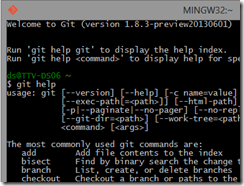
Github for Windowsimage

description (github)

  • Develop on Windows, share on GitHub.
    • Clone Repositories
    • Browse History
    • Commit Changes
    • Branch Code
    • Share on GitHub.com
  • The easiest way to use Git on Windows.

usage scenarios

  • using Git without using the command-line
  • basic and advanced source control operations
  • Simple UI in ‘Modern UI’ Style
  • Git Shell command line (powershell)

tips

  • includes posh-git inside of Git Shell

Wednesday, March 20, 2013

Unzipping/extracting MSI files

Not that often but sometimes I need to extract some dlls from msi packages. msiexec provides all the functions which are needed as described here.

Usually I’m working using the command line

msiexec /a foo.msi /qb TARGETDIR="C:\TEMP\Foo"

but sometimes it’s helpful to have a context menu entry like this.


To add the Extract MSI entry to the context menu you’ve to add it to the registry, details here or use gist below. The second gist shows how a .bat file which can extract all msi’s in a folder can look like.